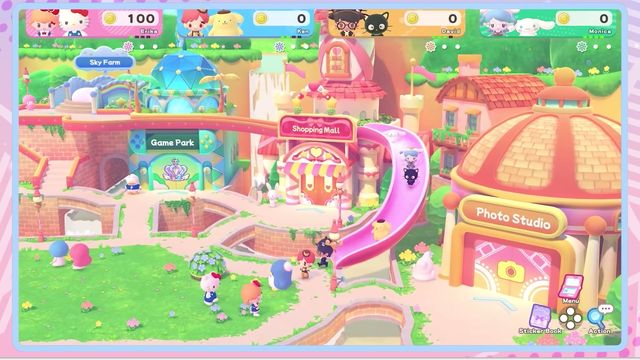
Poster Studio: Layers and Animation
Every stamp is a layer. Four sketchbooks hold sixteen pages each, the left button plays all sixteen pages as an animation, and the music is fixed: Sketchbook 1 plays Cake 1 from the Melody Cake.
Poster Studio is at the right end of the Creative Labo: a layered stamp canvas that saves into sketchbooks and plays back as an animation. It is the most feature-dense screen in the game, and the menus are the reason.
The paper side
| Item | Value |
|---|---|
| Sketchbooks | 4 |
| Pages per sketchbook | 16 |
| Copy behaviour | Copy a sketchbook's contents, then paste over another to overwrite |
| Samples | Included, and copyable |
| Animation | Left button plays all 16 pages in order |
| Background music | A Melody Cake track; Sketchbook N plays Cake N |
The animation is not a video export: it is the 16 pages shown in sequence. Design them as frames and the studio plays a loop.
Layers, and what a layer is
Every stamp is a layer. You can stack them, insert new layers above or below existing ones, and modify layers that are already placed. The layer gauge on screen shows which layer is selected, coloured to match the player's representative colour.
The layer menu is twelve operations, and the order matters:
| Operation | What it does |
|---|---|
| Insert | Adds a new layer above the selected one |
| Previous / Next | Selects the layer below or above |
| Copy and paste above | Duplicates the selected layer one step up |
| Swap with below / above | Exchanges the selected layer with its neighbour |
| Restore | Brings back the last deleted layer |
| Move to bottom / top | Sends the layer to the back or front |
| Delete | Removes the selected layer |
| Select from canvas | Picks a layer by clicking it in the picture |
| Copy colour | Copies a layer's colour, then applies it to another layer picked from the canvas |
Two of these are the ones people miss: restore (undo for a deleted layer) and copy colour (the eyedropper route to matching a colour across layers).
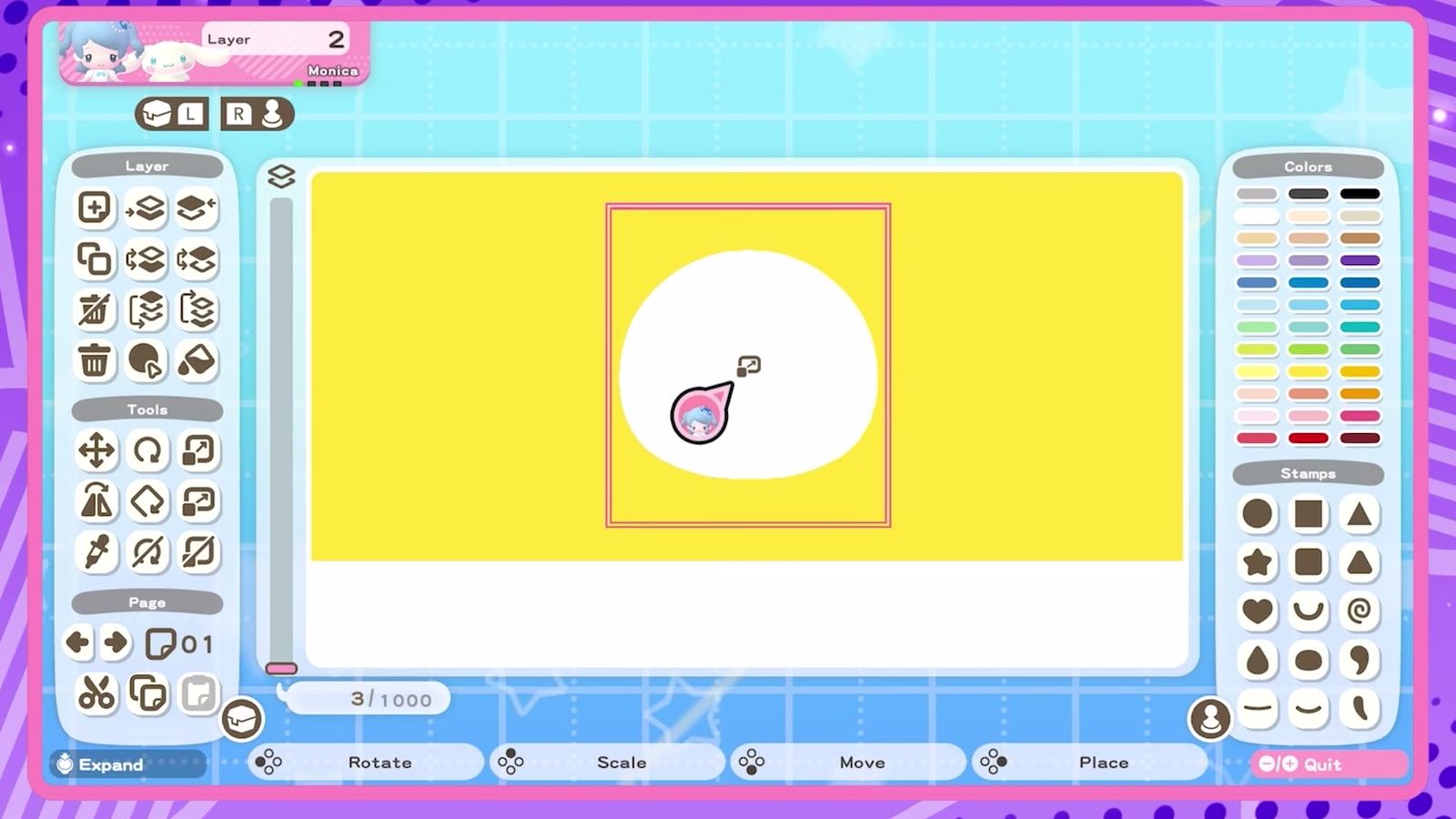
Canvas cursor modes
| Mode | How to enter | What the stick does |
|---|---|---|
| Move | Bottom button | Moves the stamp around |
| Scale | Top button | Resizes the stamp |
| Free scale | Top button again | Horizontal = width, vertical = height |
| Rotate | Left button | Rotates the stamp freely |
| Coarse rotation | Top button in rotate | Locks rotation to 15-degree steps |
Confirm places a stamp in every mode. The tool menu also carries a horizontal flip (applied before scaling and rotation), a reset rotation and a reset size — the two resets are how you recover from a stamp that has been dragged into nonsense.
Page menu
Three operations, all about moving work between pages:
- Move between pages within the sketchbook; the number on the right is the page's placement.
- Copy and clear grabs the current page and empties it.
- Copy, then paste, to duplicate a page onto another.
Because the animation runs the 16 pages in order, copying a page is how you build a hold frame or a repeated pose without redrawing it.
Checking the overlap
Press the left button on the page list to see the stacking order for that page. It is the only way to understand a page that looks wrong: a stamp that seems missing is usually behind another one.
Full screen is available in both the animation player and the overlap viewer — press the stick to expand, press it again to shrink. In full-screen canvas, SL and SR switch layers.
Making a poster that reads
- Block the big shapes first. A background layer, then the subject, then detail on top. Insert-above exists so you never have to rebuild a stack.
- Use copy colour rather than matching by eye. Palette drift across layers is what makes an amateur page look amateur.
- Design page 1 as a title card. If you plan to run the animation, page 1 is the frame people see first.
- Match the cake index on purpose. Sketchbook 1 playing Cake 1 is fixed; write the tune after deciding which book you are drawing in.
The music side is on melody cake; the puzzle machine in the same building is on Labo Puzzle.